

Insert live data in a text layer
Select a text layer and click Insert data in the Content pane. On the canvas, type/ while editing the text, or click the bolt button. Search the list, then click a field to insert it.
The field shows as a chip with its name, like Title. In preview, the chip shows the live value.
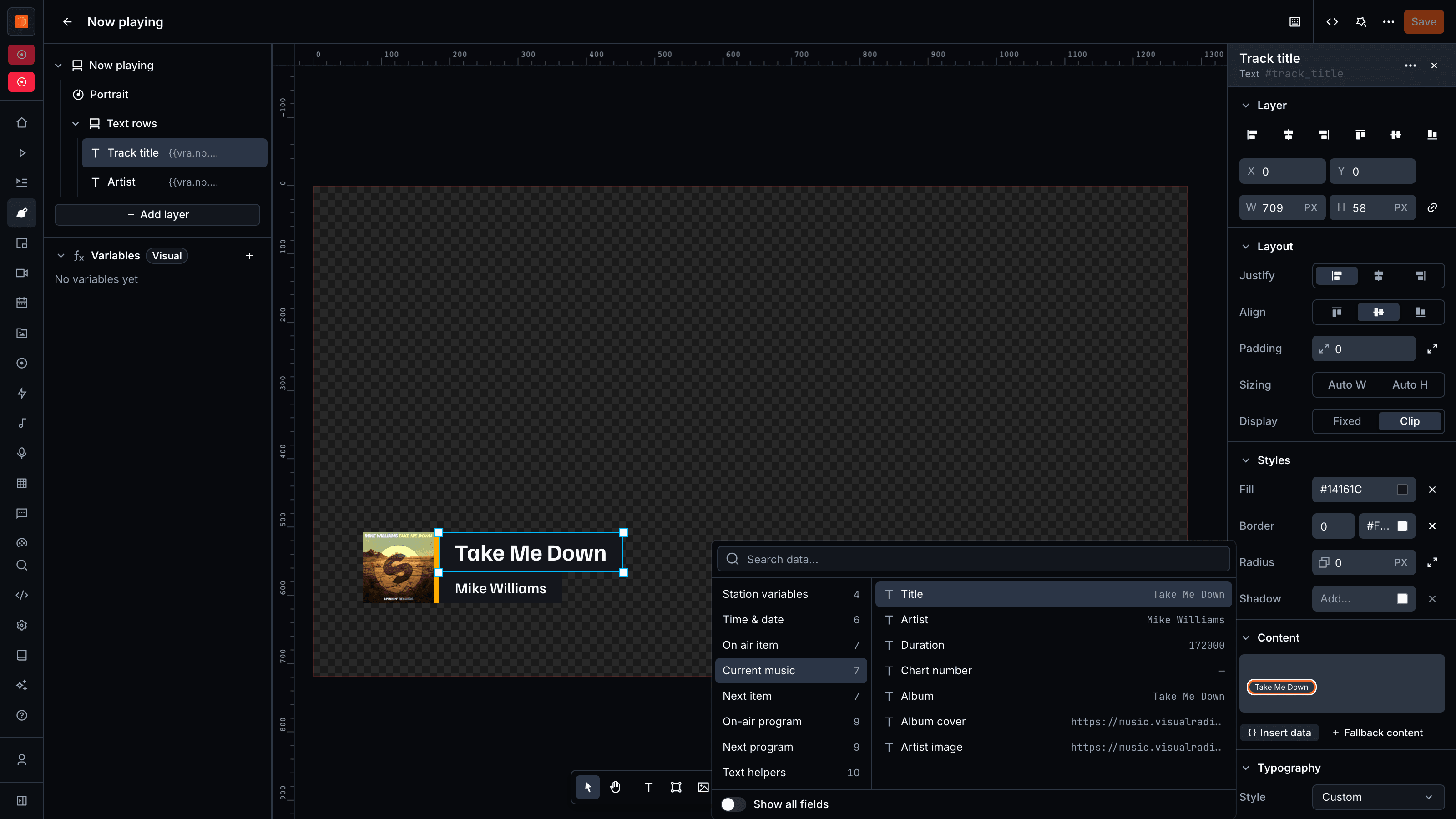
Live data you can insert
The list shows sources on the left and their fields on the right, with the live value next to each field.
Inside a playlist layer, Playlist Item lists the fields of the current item. Turn on Show all fields to browse every data field of your station.
Track data comes from your radio automation, program and presenter data from Scheduling.
Show text when live data is empty
Click Fallback content in the Content pane of a text layer and enter the text under Fallback. The layer shows it when its live data is empty, like when no track is playing.Show a live image in a visual
Use a Dynamic media layer for an image that follows live data. Set Source to Expression and click Insert data to pick an image field: Album cover, Artist image, Image, Host image or Guest image. The expression can also be any image URL. For album and artist art, the Album cover and Artist cover layers do the same with less setup. Pick the track under Music track selection, like Onair or the next track. Add a fallback image for when no cover is available.Write live data by hand
A chip is a data path between double curly brackets. You can also type the path yourself, in text, HTML and dynamic media layers. Every path starts withvra.:
_, in square brackets too:
#if work as well. See the Handlebars guide.