

Open the animations timeline
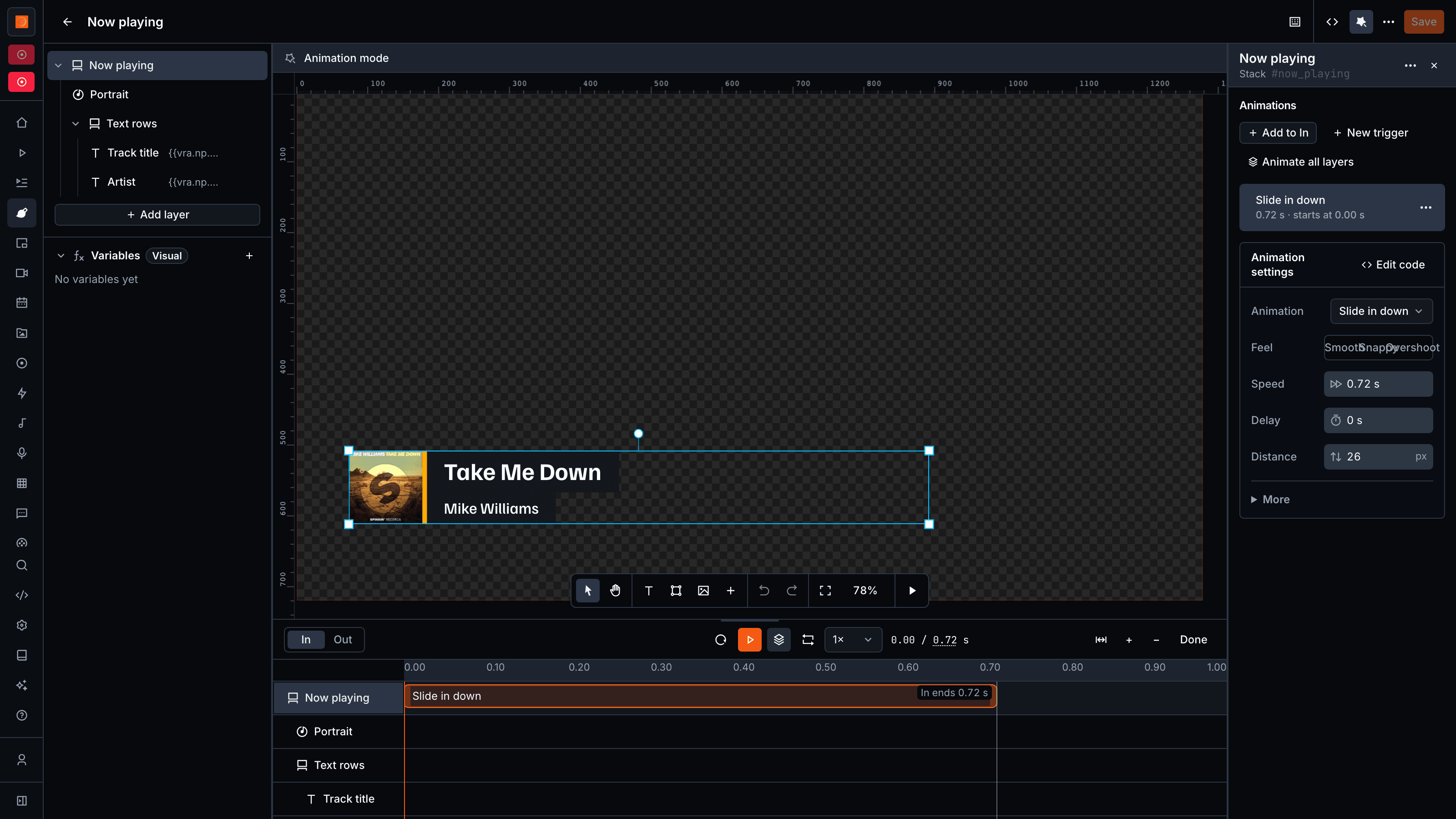
Click the Animations button, the wand icon in the header of the Visual Designer, or press A. The canvas shows Animation mode and the timeline opens below it. Click Done to close it. The timeline has one row per layer. A layer can animate on four triggers:- In - When the visual goes on air.
- Out - When the visual comes off air.
- Item in and Item out - When an item of a playlist layer appears or goes.
Add an animation to a layer
1
Select a layer
Select the layer on the canvas or in the layers panel.
2
Choose a trigger
Choose In or Out on the timeline.
3
Pick a preset
Click Add to In, or Add to Out, in the Animations panel and pick a preset.
Animate all layers at once
Click Animate all layers in the Animations panel and pick a pair, like Slide up or Fade. Every top-level layer gets an In and an Out animation, except Bodymovin layers and layers with code-only animations. The In animations start 0.1 s after each other, the Out animations run in reverse order. When the visual already has animations, VRA asks before it replaces them. Undo brings them back.Animation settings
Select an animation to change it under Animation settings.
An animation shows Edited in code when its code uses something the panel can’t change. Click Edit code to change it in the JS.
Arrange timing on the animations timeline
Drag a bar to move its start, for example to delay a layer. Drag an edge to change its duration. Bars snap to 0.01 s and to the edges of other bars, hold Alt to turn snapping off.- Drag a bar onto another row to move it to that layer. Hold Cmd or Ctrl to copy it instead.
- The left and right arrow keys move the selected bar 0.01 s, with Shift 0.1 s.
- Cmd or Ctrl + D duplicates it, Delete removes it.
- Right-click a bar for Edit in code, Duplicate and Delete.
0.00 / 1.20 s, to set a Length. With animations on the trigger, a new length stretches or shrinks them all.
Preview animations
Click play on the timeline, or press Space, to play or pause the preview. Play from the start restarts it from 0, Loop preview repeats it. The speed menu plays it at 0.25×, 0.5×, 1× or 2×. Loop and speed only change the preview. Drag the playhead on the ruler to look at one moment. K pauses and L plays. With no bar selected, the left and right arrows step one frame, 1/25 s.Start animations from your own code
Click New trigger to animate on a custom event, like a score update. Give it a name and add animations to it as usual. The panel shows the line to start it from your JavaScript, likevisualLink.animations.emit("score-updated"), and Test trigger to try it. See Animation custom events.
Hand-written animation code on the timeline
The timeline reads GSAP timelines andgsap.to, gsap.from and gsap.fromTo calls in the visual’s lifecycle handlers. Code it can read but not change safely shows with a Code only badge. Other code stays in the JS and keeps working, but does not show on the timeline.
When the JavaScript has an error, the timeline shows Fix the JavaScript to edit animations with the line number. The last animations stay visible but can’t be edited until you fix the line. See the GSAP guide for writing your own.