

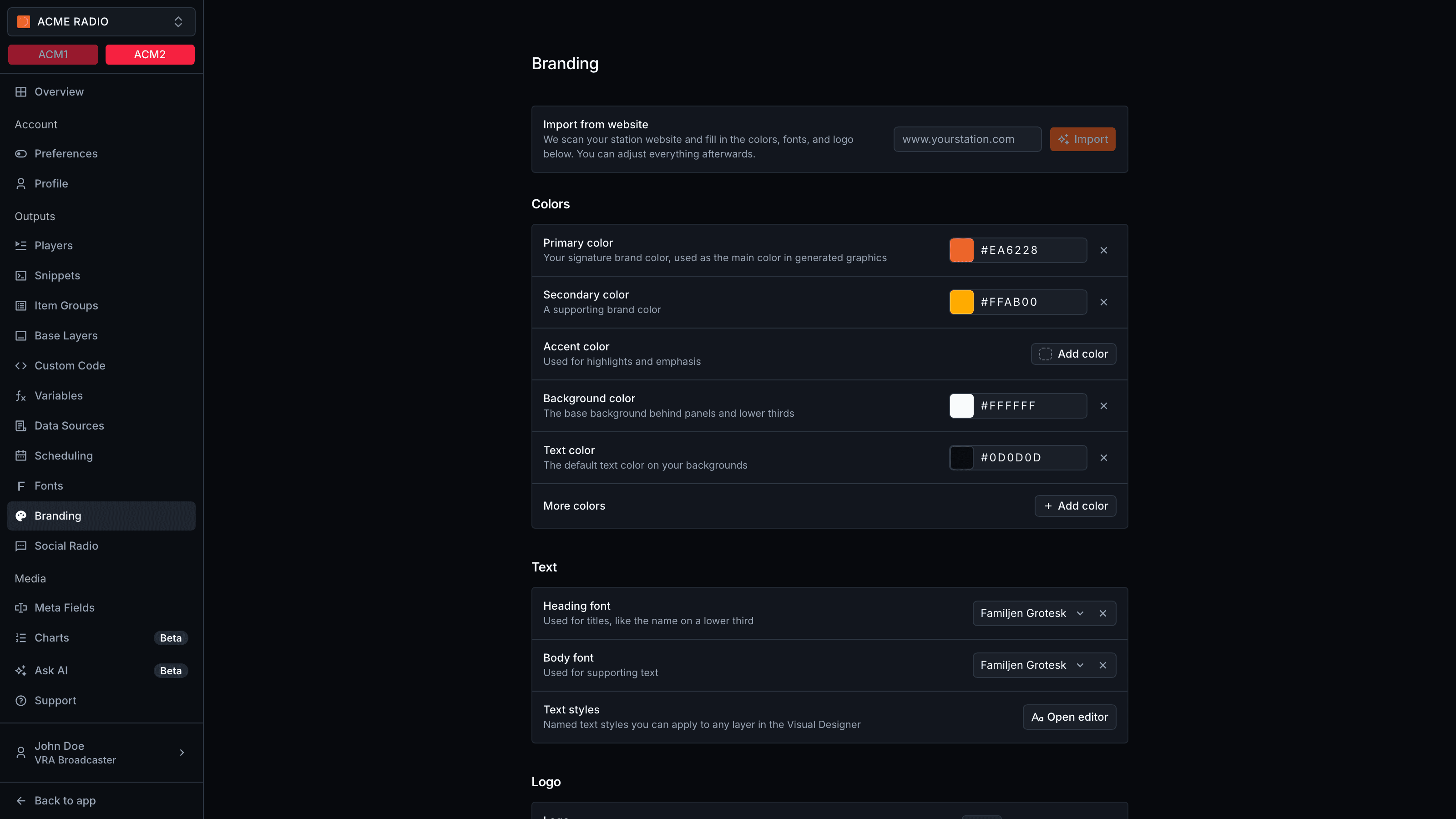
Import your branding from your website
Enter your station website, likewww.yourstation.com, under Import from website and click Import. VRA reads the site and fills in the colors, the heading and body font and the logo. The import takes about a minute and costs no AI credits. After 3 minutes it stops and asks you to try again.
The import writes straight to your branding, so check every section afterwards and adjust what you want to change. The import reads your site as it is today: old colors on the site mean old colors in the import.
After an import, the Text section can show two extra boxes:
- Fonts found on your website - Click a font to use it as the heading font.
- Type scale found on your website - Heading 1, 2 and 3 and Paragraph as your site sets them: font, size, weight, line height, letter spacing and casing. Click Apply to text styles to use them. This changes every layer that uses those styles, across all your visuals.
Set your brand colors in Branding
The Colors section holds five brand colors: Primary color, Secondary color, Accent color, Background color and Text color. The primary color is the main color in generated graphics, the background color sits behind panels and lower thirds. Under More colors, click Add color for extra colors, like a sponsor red. The new color is named after its hex value. Type a name over it. These colors save straight away, without Save branding. Drag a row to reorder it, or open its menu and choose Delete. Every brand color shows up in the color pickers of the Visual Designer. How linking works is on Brand colors.Set the heading and body font in Branding
The Text section has two fonts:- Heading font - For titles, like the name on a lower third.
- Body font - For supporting text.
Add your station logo in Branding
The Logo section has five image fields, each picked from your Media Hub:
Without a logo, standard templates show your station name instead.