> ## Documentation Index
> Fetch the complete documentation index at: https://docs.visualradioassist.live/llms.txt
> Use this file to discover all available pages before exploring further.
# Link PlayIt Live data to Visual Radio
> To automate Visual Radio with PlayIt Live you can easily link it to your VRA set-up by following these simple 3 steps:
To automate Visual Radio with PlayIt Live you can easily link it to your VRA set-up by following these simple 3 steps:
***
### Requirements
✅ Make sure you have the Now Playing Plugin installed from [https://www.playitsoftware.com/Plugins/View/NowPlaying](https://www.playitsoftware.com/Plugins/View/NowPlaying)
### Preparation
1. Go to your AutomationLink Settings in the Advanced Studio Settings
Add the PlayIt Live Automation
2. Copy the URL that is generated in the Cloud
### Configuration
1. Configure your Now Playing Plugin
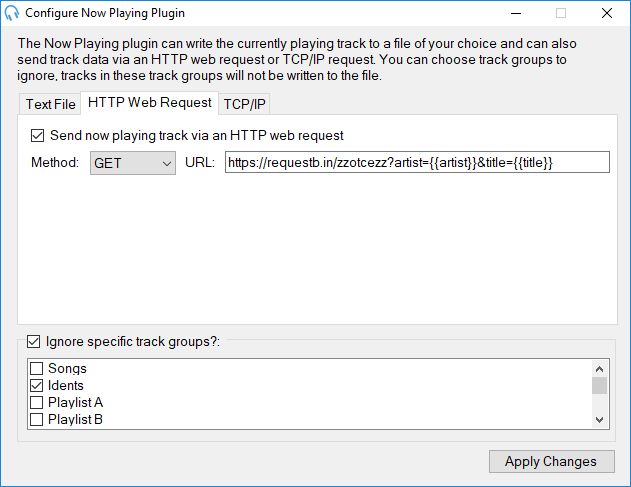 2. Set the Method to POST and Paste the URL from the AutomationLink Settings screen. Make sure to validate if the hostname in the url is accessible by the PlayIt Live machine.
3. Copy & Paste the following Template into the Configure screen:
### Template
```xml theme={null}
{{artist}}
{{title}}
```
2. Set the Method to POST and Paste the URL from the AutomationLink Settings screen. Make sure to validate if the hostname in the url is accessible by the PlayIt Live machine.
3. Copy & Paste the following Template into the Configure screen:
### Template
```xml theme={null}
{{artist}}
{{title}}
```