> ## Documentation Index
> Fetch the complete documentation index at: https://docs.visualradioassist.live/llms.txt
> Use this file to discover all available pages before exploring further.
# Link OmniPlayer to Visual Radio
> To automate Visual Radio with AerOn Studio you can easily link it to your set-up by following this configuration guide.
To automate Visual Radio with AerOn Studio you can easily link it to your set-up by following this configuration guide.
## Prepare Visual Radio Assist for receiving OmniPlayer Data
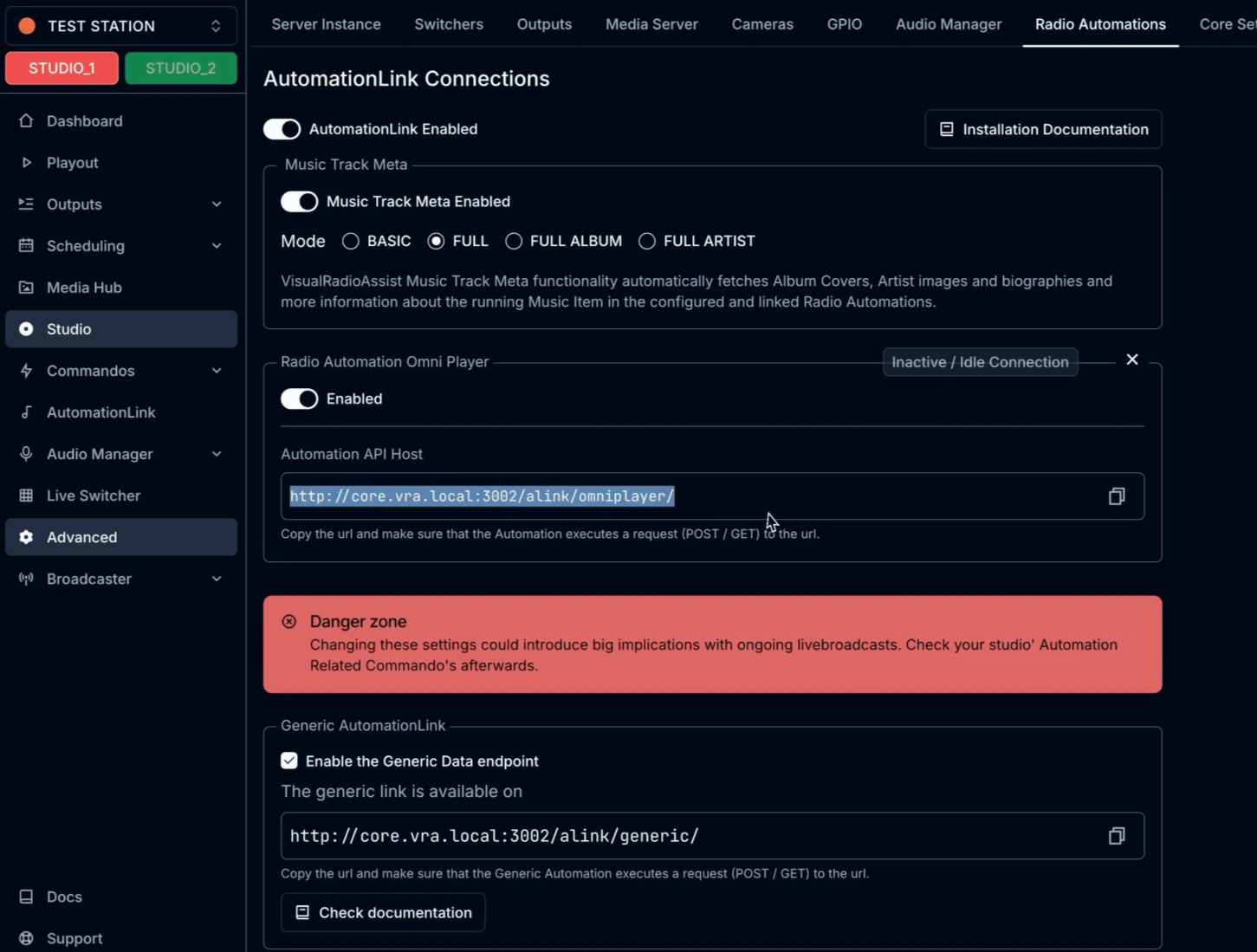
1. Login to Cloud and go to [Studio Advanced Settings → Radio Automations](https://cloud.visualradioassist.live/studio/active/advanced/automation)
2. Add OmniPlayer to your Automation Connections and Enable it
3. Click on Generate Dump URL to obtain the URL that OmniPlayer should communicate to
 ### Configure Omni MultiPlayer Exports
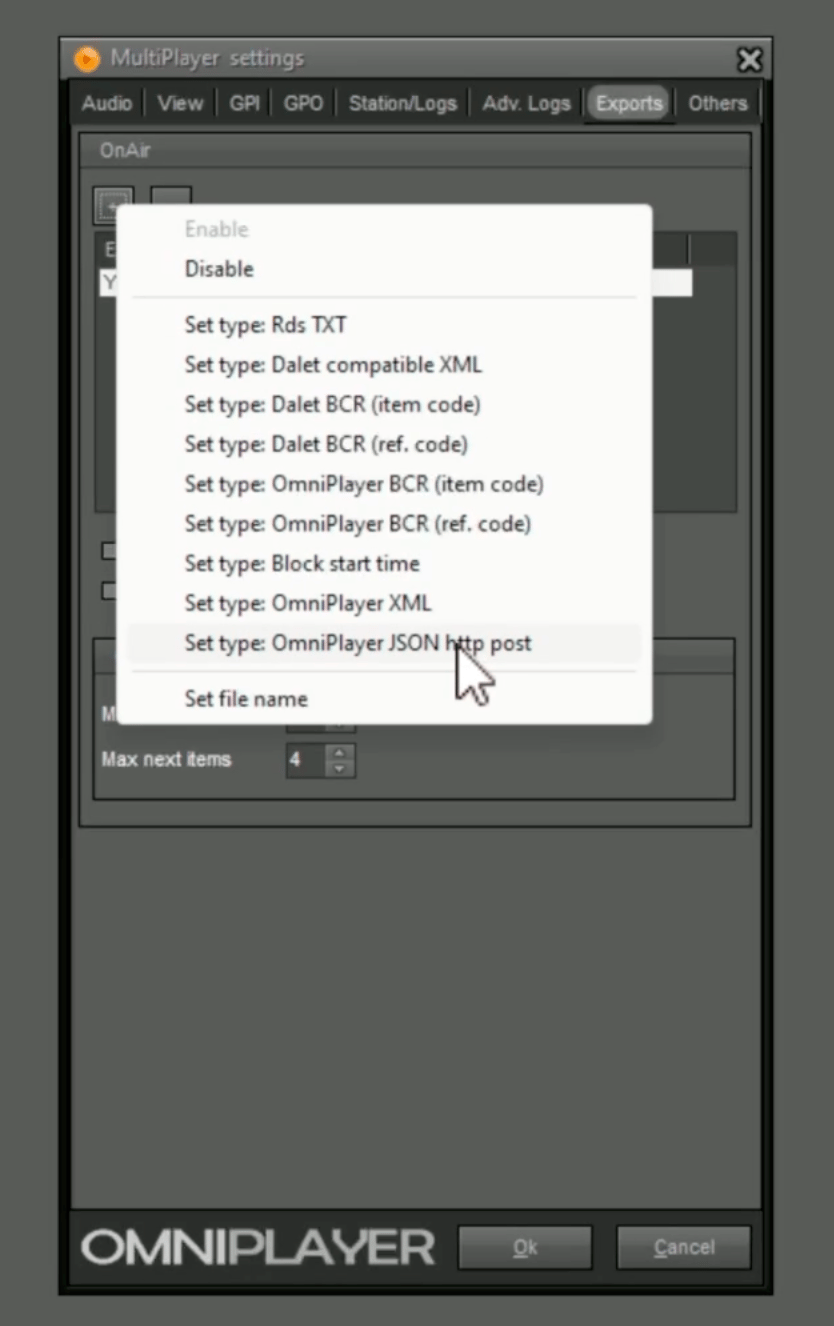
1. Open MultiPlayer Settings and open “Exports”
2. Add a new OmniPlayer JSON http post
### Configure Omni MultiPlayer Exports
1. Open MultiPlayer Settings and open “Exports”
2. Add a new OmniPlayer JSON http post
 3. Configure the copied dump url as URL in the properties window. Make sure to update the hostname to the correct host or IP address of the machine running the VRA Core Application.
4. `OmniPlayerBroadcastJSONRPC format` should be selected
3. Configure the copied dump url as URL in the properties window. Make sure to update the hostname to the correct host or IP address of the machine running the VRA Core Application.
4. `OmniPlayerBroadcastJSONRPC format` should be selected
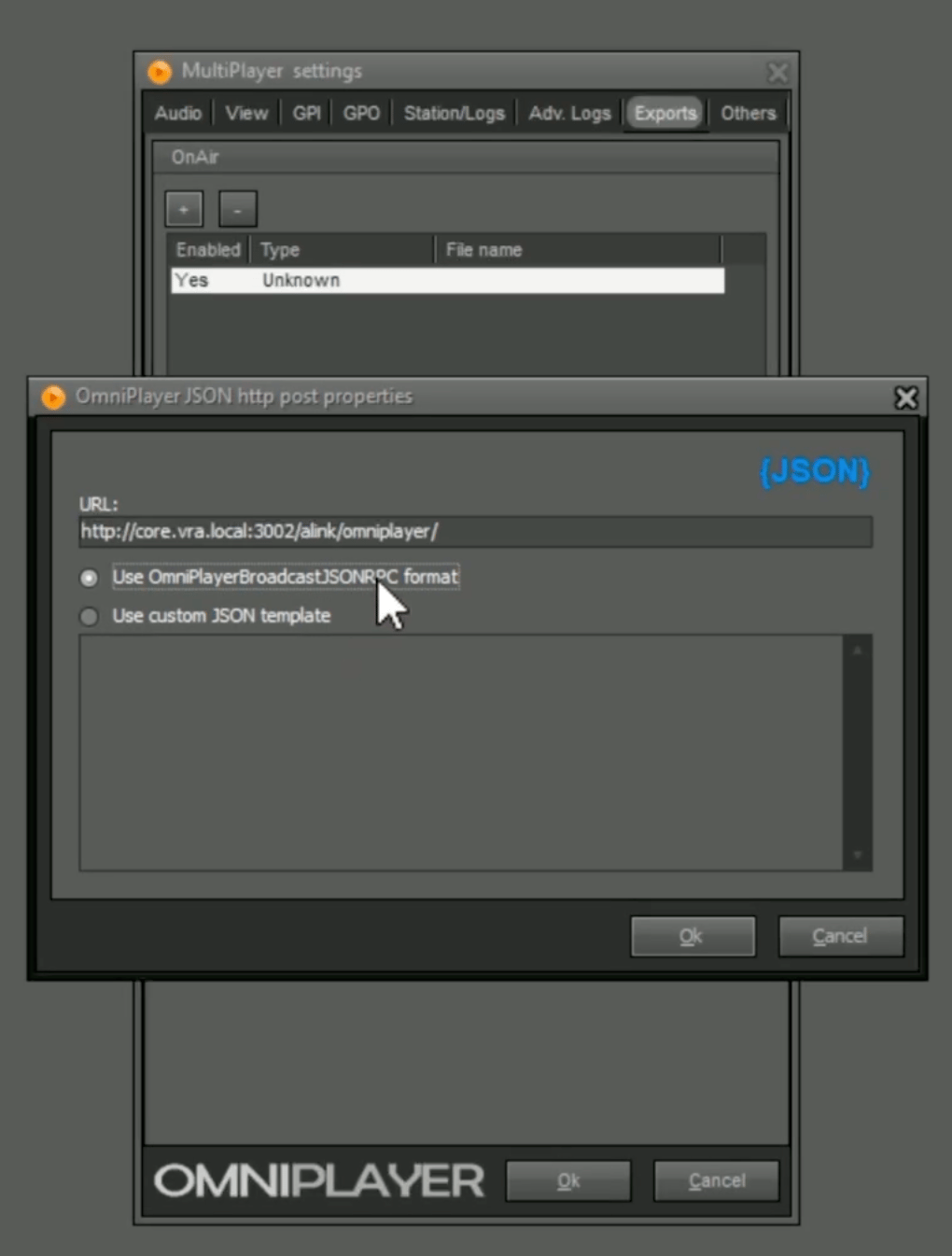 5. Click on Ok (2x) and verify that after starting something in your MultiPlayer VRA receives nowplaying data.
You can now configure VRA to filter with [Item Groups](/radio-automation-data) or trigger video in the [Output Player Conditions](/video-guides/trigger-graphics-with-radio-nowplaying-information)
5. Click on Ok (2x) and verify that after starting something in your MultiPlayer VRA receives nowplaying data.
You can now configure VRA to filter with [Item Groups](/radio-automation-data) or trigger video in the [Output Player Conditions](/video-guides/trigger-graphics-with-radio-nowplaying-information)