> ## Documentation Index
> Fetch the complete documentation index at: https://docs.visualradioassist.live/llms.txt
> Use this file to discover all available pages before exploring further.
# Set-Up
> VisualRadioAssist is fully configurable from your Cloud environment. After completing the onboarding and running the Core, Audio Manager and Output Player applications on your Visual Radio Machine, you can start configuring your set-up.
VisualRadioAssist is fully configurable from your Cloud environment. After completing the onboarding and running the Core, Audio Manager and Output Player applications on your Visual Radio Machine, you can start configuring your set-up.
## Steps to set-up VRA apps
Download, install and connect the Core to your studio.
Connect VRA to your hardware or software video switcher.
Map your players to an available NDI or SDI output.
Feed now-playing and scheduling data from your automation system.
Make audio devices available to the Audio Manager.
Add PTZ cameras to trigger presets from Camera Angles.
### Apps
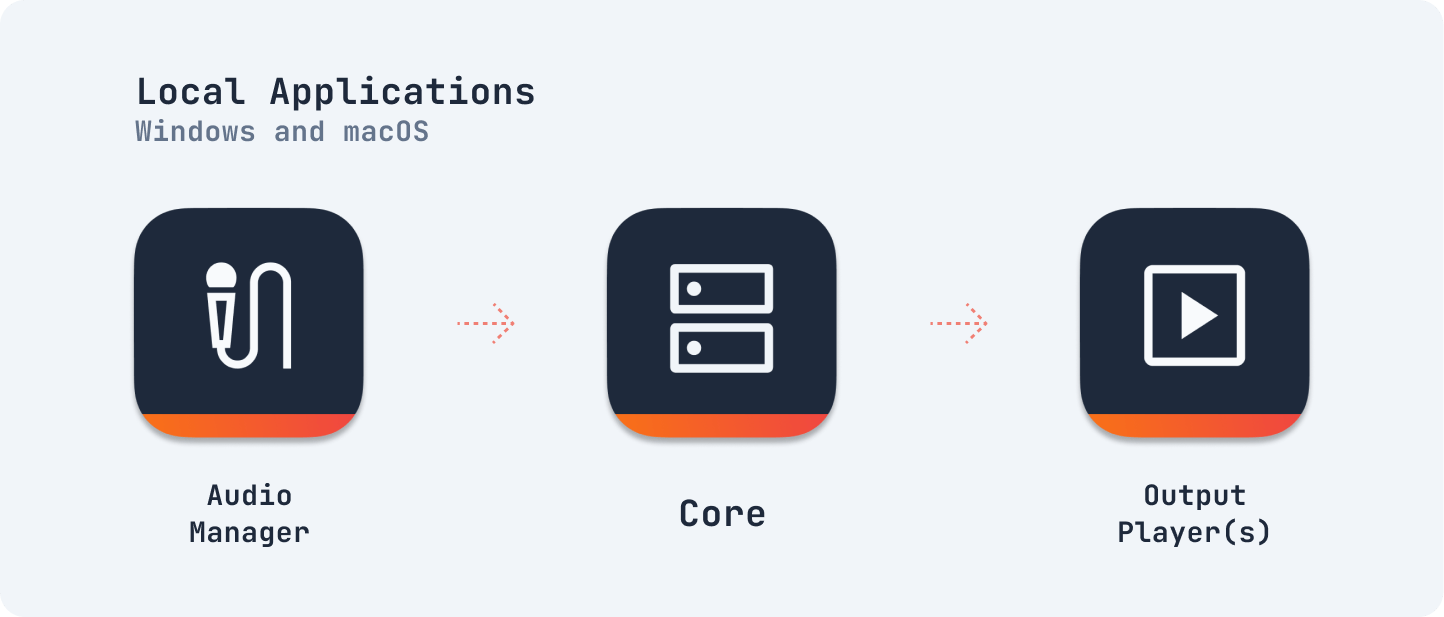 Local Application overview – [⬇️ Download Apps](https://visualradio.cloud/studio/apps/download)
* 🎛 **Core:** Links with VideoSwitchers, Automations and Scheduling.
* ⏯️ **Output Player:** Plays configured Outputs with local video, HTML or cached content (possibly sharded, as configured in a redundant environment)
* 🎙️ **Audio Manager:** Audio Level monitoring and commando control, has to access available and configured audio devices.
Local Application overview – [⬇️ Download Apps](https://visualradio.cloud/studio/apps/download)
* 🎛 **Core:** Links with VideoSwitchers, Automations and Scheduling.
* ⏯️ **Output Player:** Plays configured Outputs with local video, HTML or cached content (possibly sharded, as configured in a redundant environment)
* 🎙️ **Audio Manager:** Audio Level monitoring and commando control, has to access available and configured audio devices.