> ## Documentation Index
> Fetch the complete documentation index at: https://docs.visualradioassist.live/llms.txt
> Use this file to discover all available pages before exploring further.
# Media Hub
> To use your own media within VRA, the Cloud environment enables you to easily import, ingest and categorise media to use assets in your Visuals and Output Players
The **VRA Media Hub** functions similarly to popular file management services you already know like Dropbox or Google Drive but is specifically tailored for broadcasting workflows. You can:
* **Upload Media**: Add your media files by **dragging and dropping assets directly into the Media Hub** or uploading them manually through the interface.
* **Organize Media**: Create folders and subfolders to categorize your assets, making them easy to locate and use across VRA tools like **Outputs**, **Scheduling**, and the **Visual Designer**.
* **Integrated Access**: Organized assets are accessible throughout the VRA Cloud platform, streamlining workflows and ensuring your media is readily available for broadcasts.
This streamlined media management system saves time and ensures your assets are always at your fingertips when creating compelling visual radio experiences.
# Image Media
Within Cloud you can upload your Media in the form of images (png, jpg, etc.)
These images can later be used for the media of your [Scheduling](/scheduling) Program, [Presenters](/presenters) information or [Visual Designer](/visual-designer) elements.
### Note on quality
VRA will make sure that uploaded images are always loading as fast as possible in your Cloud (automatic compression). However when used in an Output (Visual Element display) the Media is always loaded in the highest possible quality.
## Supported image formats
You can upload the following image formats to VRA Cloud:
* PNG
* GIF
* JPEG
* WebP (excluding animated WebP files)
* SVG
## Dimensions and sizes
These are the maximum allowed sizes and dimensions VRA supports:
* Maximum image dimension is 12,000 pixels.
* Maximum image area is limited to 100 megapixels (for example, 10,000×10,000 pixels).
* Image metadata is limited to 1024 bytes.
* Images have a 10 megabyte (MB) size limit.
* Animated GIFs, including all frames, are limited to 100 megapixels (MP).
# Video Media
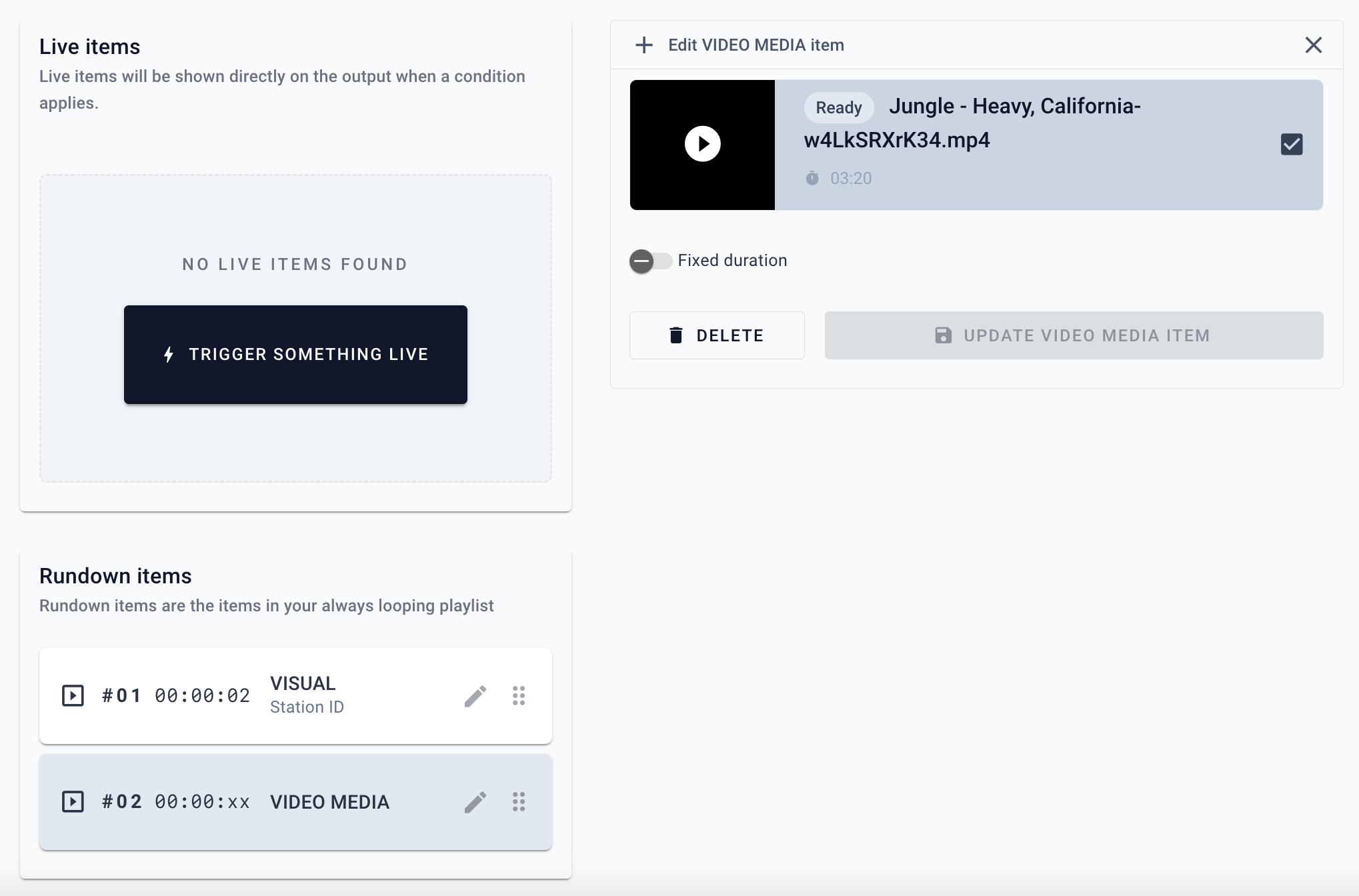
Output Player rundowns support your uploaded media as content, so you are able to play your freshly uploaded video content on a Player.
 ### Uploading your media
After upload, your media will be processed. When the media has been successfully processed you can see the “**Ready**” label.
### Uploading your media
After upload, your media will be processed. When the media has been successfully processed you can see the “**Ready**” label.
 ### Format & Auto conversion
VRA automatically converts the uploaded video into a suitable Output Player format; currently 1080p in your source framerate (max. 70 FPS). This processing step usually takes a minute or two.
**File formats supported:**
### Format & Auto conversion
VRA automatically converts the uploaded video into a suitable Output Player format; currently 1080p in your source framerate (max. 70 FPS). This processing step usually takes a minute or two.
**File formats supported:**
MP4, MKV, MOV, AVI, FLV, MPEG-2 TS, MPEG-2 PS, MXF, LXF, GXF, 3GP, WebM, MPG, QuickTime
Alpha layers in uploaded video files will be converted to fill (black). Use Local Media files in [Output Editor](/output-editor) to play large Alpha-layer videos.
### Limits
The max duration of your uploaded media must not extend 180 minutes / 1.5 hrs
Max. size of 5 GB
Max average bitrate of 200Mbps
Consult your current license specifications for the maximum Cloud Storage you can utilize.
See [How to display an uploaded video on an Output](/essentials/how-to-display-an-uploaded-video-on-an-output)