> ## Documentation Index
> Fetch the complete documentation index at: https://docs.visualradioassist.live/llms.txt
> Use this file to discover all available pages before exploring further.
# How to display unique media for each live show
> Connect media to each live program and display it automatically on an Output Player.
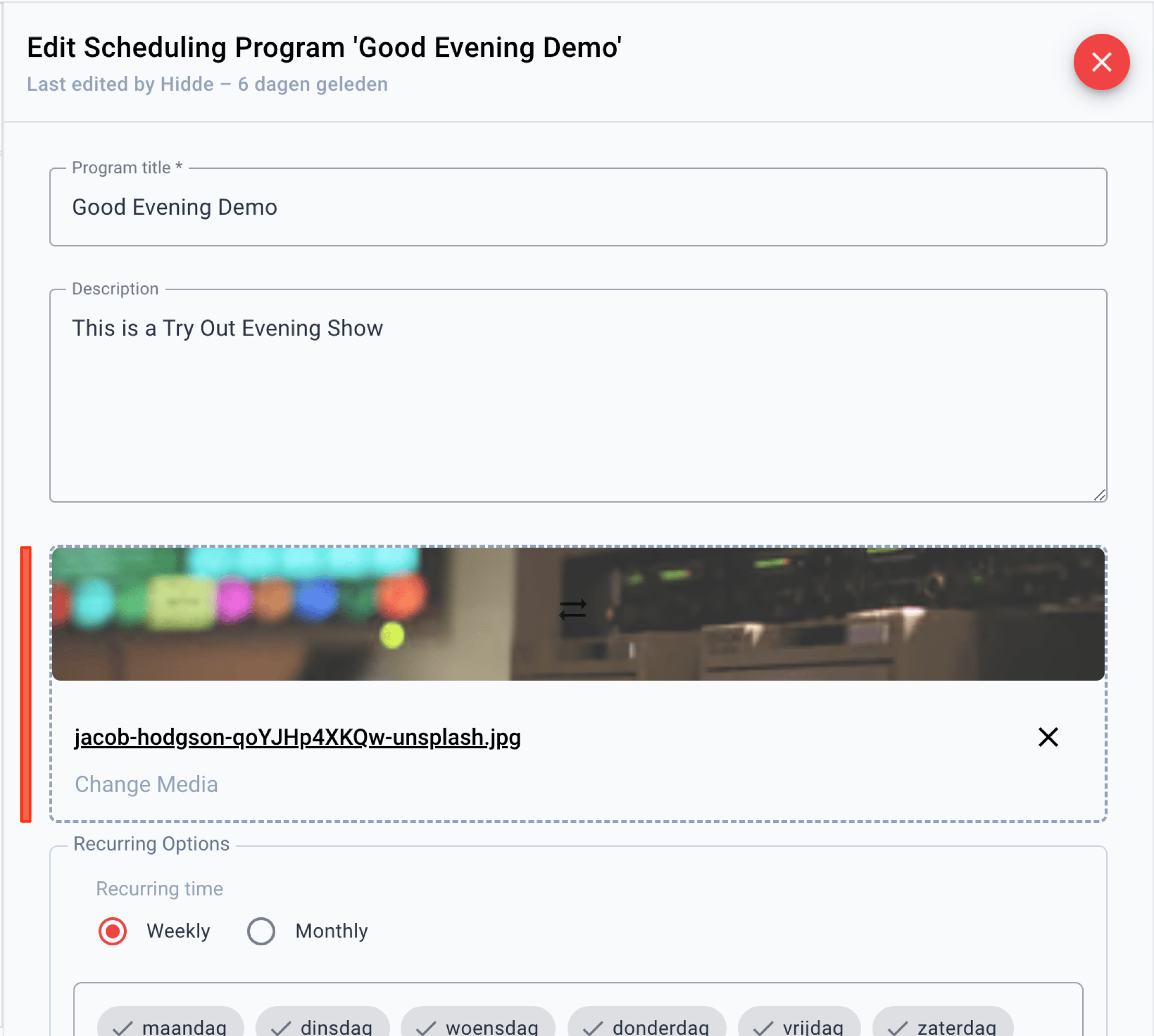
1. **Connect media to your liveshow**
Make sure to provide VRA with all the information about your broadcast in the [Scheduling](/scheduling) of your Station.
When you’re creating a live program you can connect the uploaded [Media Hub](/media-hub) to the Scheduling Program.
 2. **Show the media on an Output Player**
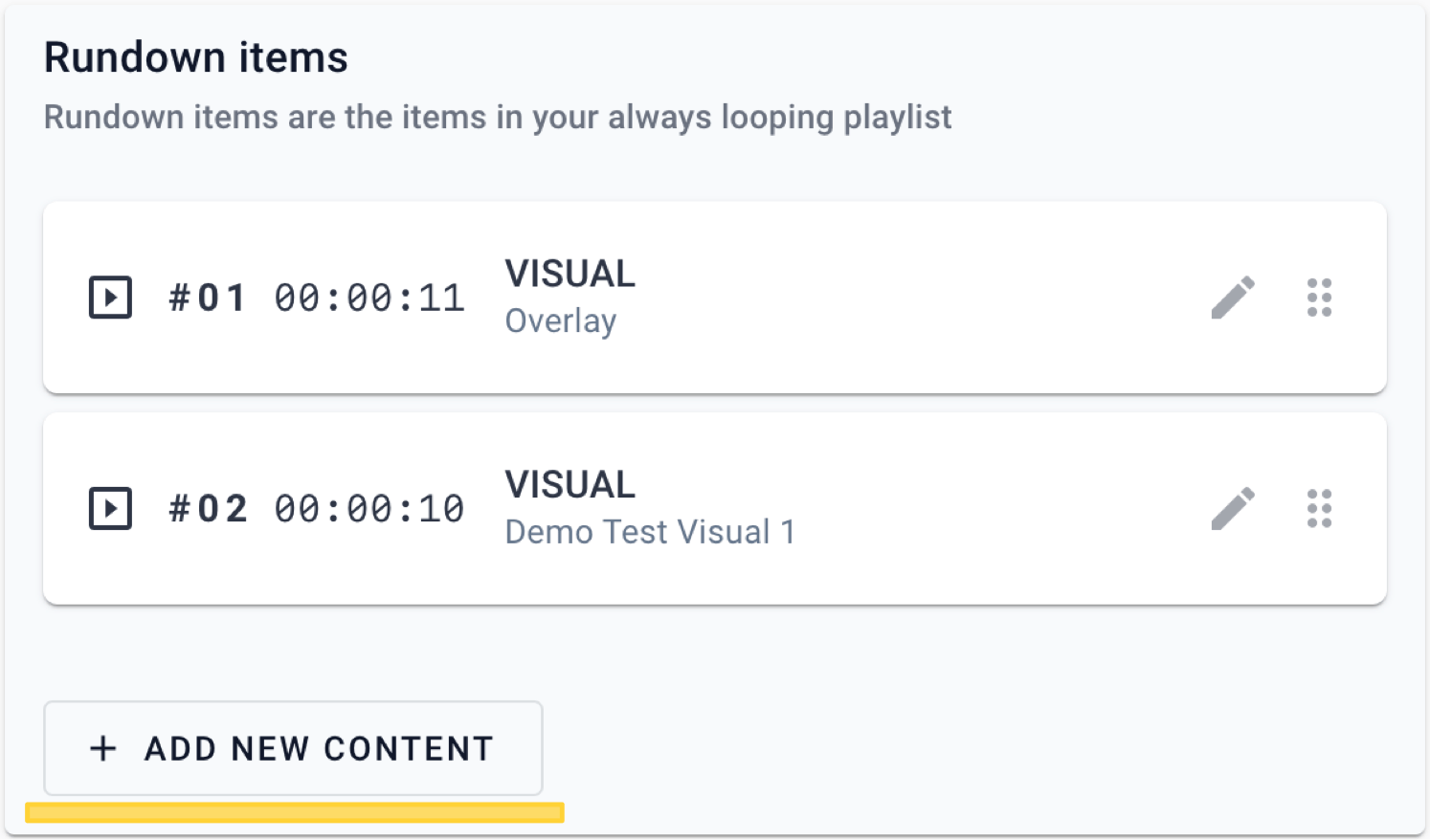
Go to the VRA [Output Editor](https://visualradio.cloud/outputs) and create a new Output or select your existing one. Create a rundown, and add Content to the Rundown Items:
2. **Show the media on an Output Player**
Go to the VRA [Output Editor](https://visualradio.cloud/outputs) and create a new Output or select your existing one. Create a rundown, and add Content to the Rundown Items:
 3. **Play Item**
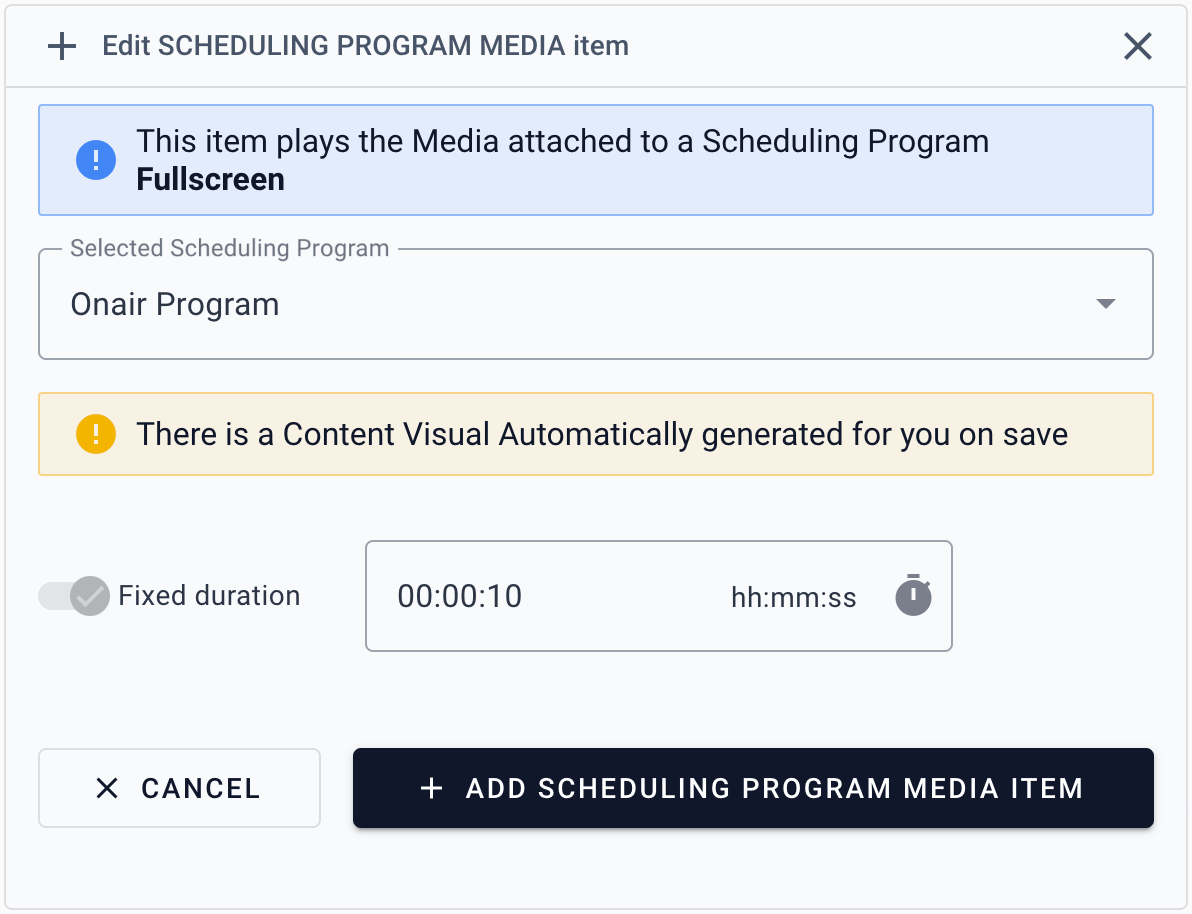
Select **Scheduling Program Media** to automatically show the connected Media of your live show (currently onair) on the Output.
3. **Play Item**
Select **Scheduling Program Media** to automatically show the connected Media of your live show (currently onair) on the Output.
 Check out all the possibilities of the [Output Editor](/output-editor) and [Scheduling](/scheduling)