> ## Documentation Index
> Fetch the complete documentation index at: https://docs.visualradioassist.live/llms.txt
> Use this file to discover all available pages before exploring further.
# How to automate your Output Player in onair and offair situations
> Restructure your Output with Live Items so Scheduling Media only shows when there is a live program, otherwise fallback to your other items.
In addition to the instructions in [How to display unique media for each live show](/essentials/how-to-display-unique-media-for-each-live-show) you can also restructure your Output to make use of the power of Live Items.
Walk through these steps to make sure that the Scheduling Media is only showed **when there is a live program**, otherwise **fallback** to your other items.
1. Follow the steps from the [initial guide](/essentials/how-to-automate-your-output-player-in-onair-and-offair-situations).
2. Make sure you do not have other items in your rundowns, other than the **Scheduling Program Media.**
3. Add a condition to the rundown that contains your Scheduling Program Media item, containing the following properties.
1. Condition Editor → IF “**Onair Program**”
2. Equals To
3. **“Every Onair Program”**
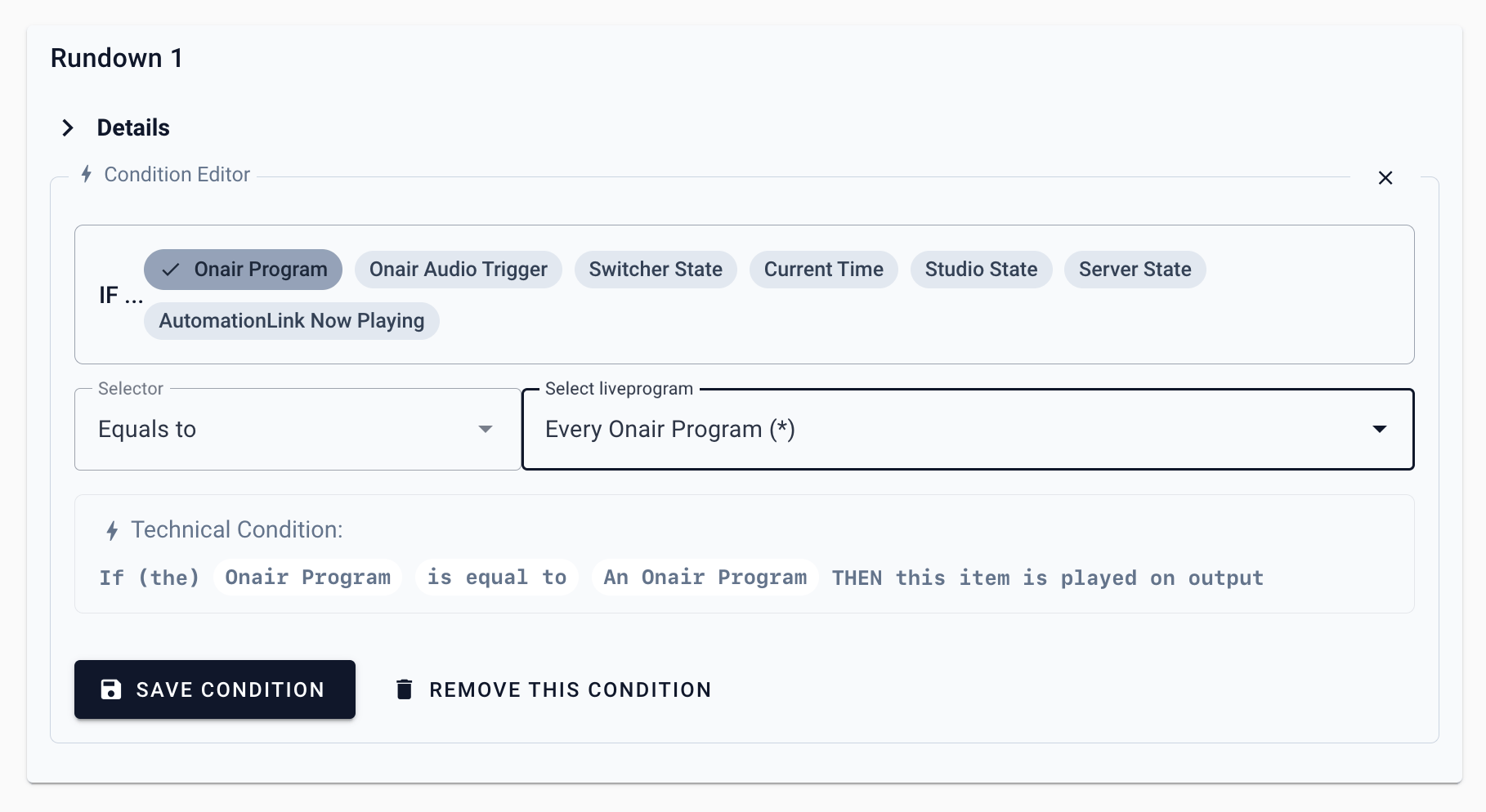 This means that the rundown will only play when there is an onair program.
4. When you have gaps of “offair time” in your [Calendar](/scheduling), the rundown will be deactivated/stopped.
5. To make sure that the Output Player will still show information/video or other items; **create a new rundown**
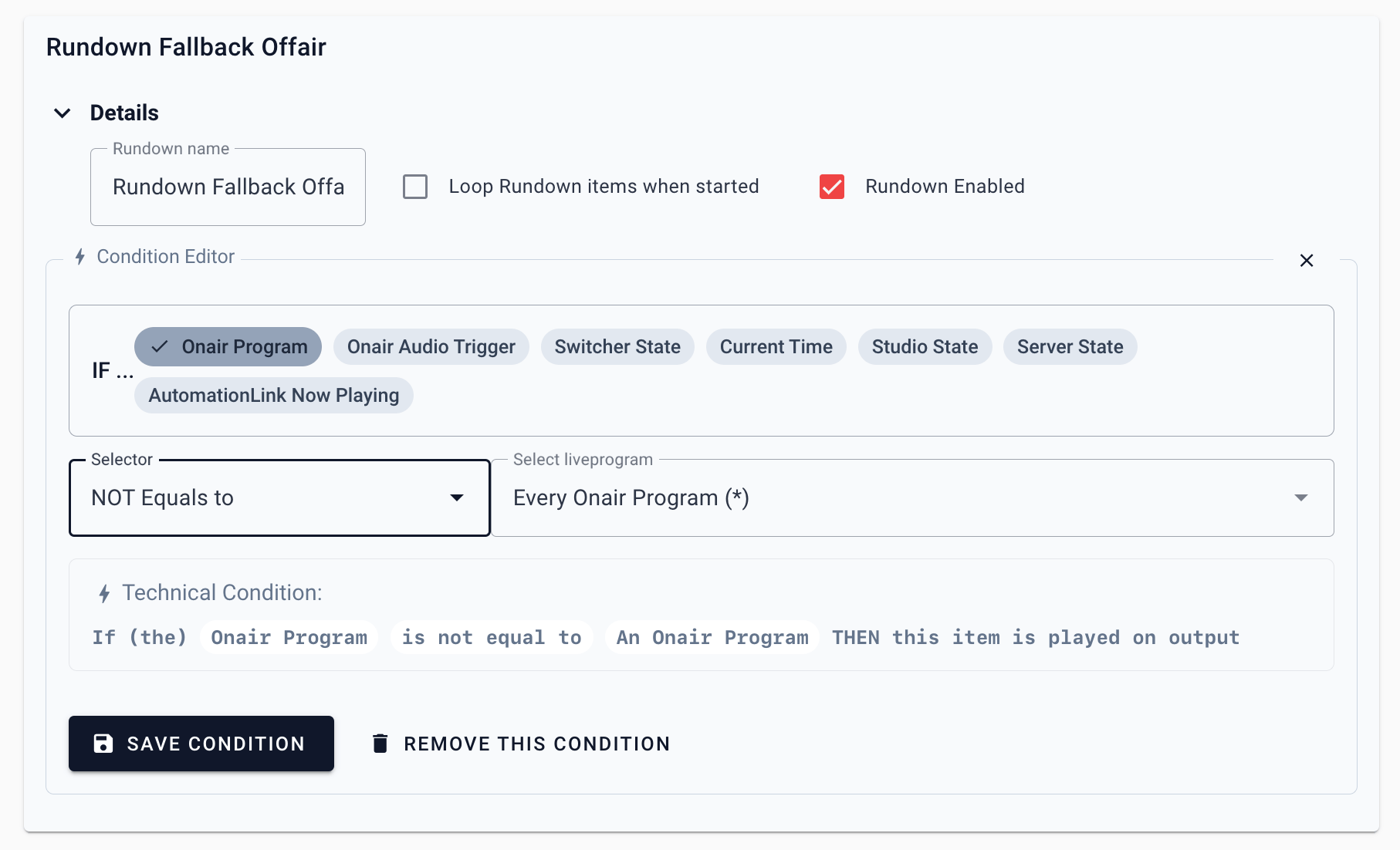
6. This rundown also has an Onair Program - condition, with a slight difference:
1. Condition Editor → IF “**Onair Program**”
2. **NOT Equals To**
3. **“Every Onair Program”**
This means that the rundown will only play when there is an onair program.
4. When you have gaps of “offair time” in your [Calendar](/scheduling), the rundown will be deactivated/stopped.
5. To make sure that the Output Player will still show information/video or other items; **create a new rundown**
6. This rundown also has an Onair Program - condition, with a slight difference:
1. Condition Editor → IF “**Onair Program**”
2. **NOT Equals To**
3. **“Every Onair Program”**
 7. Now add new items to your Rundown Items (or Live Items when applicable) – where you familiar with. For example: add a **Local Video item** looping with advertisements or teasers about your station. These will automatically play when the Scheduling is **offair**! ✨
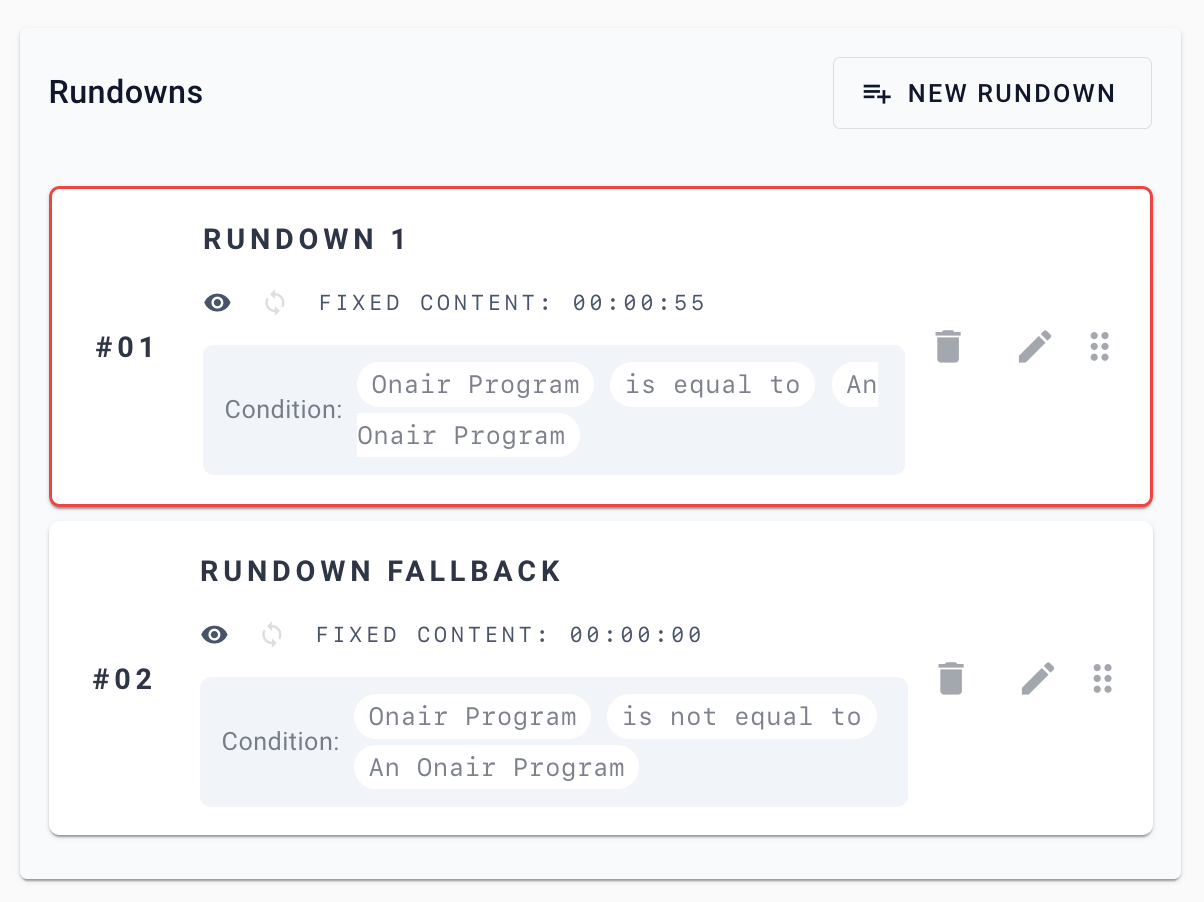
Your rundown list will look something like this:
7. Now add new items to your Rundown Items (or Live Items when applicable) – where you familiar with. For example: add a **Local Video item** looping with advertisements or teasers about your station. These will automatically play when the Scheduling is **offair**! ✨
Your rundown list will look something like this: